
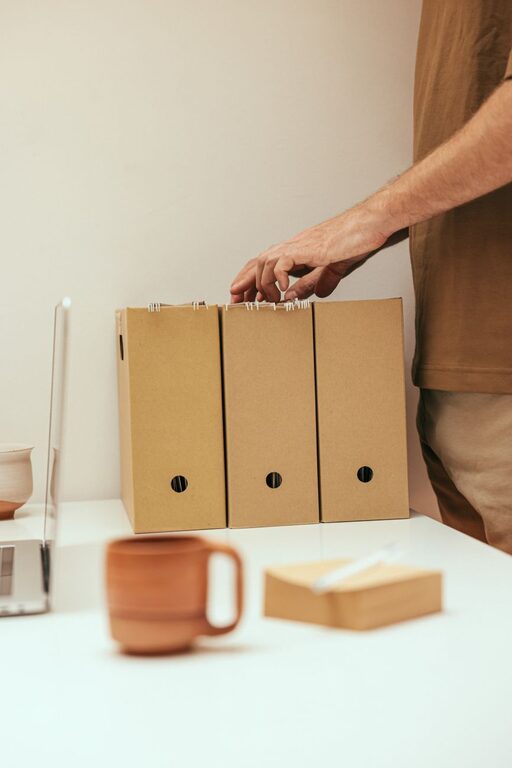
Tips for Organizing Files on Your Computer Efficiently
Keeping your computer files well-organized can save you time, reduce stress, and improve your overall productivity. Whether you’re managing work documents, photos, or personal projects, a clear system makes it easier to find what you need quickly. In this post, we’ll explore practical tips for organizing your files, suitable for beginners and seasoned users alike.
Why Organizing Files Matters
Before diving into the tips, it’s helpful to understand why keeping your files organized is important:
– Saves time: No more endless searching when you can locate files easily.
– Reduces clutter: An orderly system means less digital mess.
– Prevents data loss: Backing up organized files is simpler and more effective.
– Boosts productivity: A clean digital workspace minimizes distractions.
With these benefits in mind, here’s how to get started.
1. Create a Logical Folder Structure
Start by designing a folder hierarchy that makes sense for your needs.
Use Broad Categories
Begin with main folders named after broad categories such as:
– Work
– Personal
– Photos
– Music
– Projects
Break Down into Subfolders
Inside each main folder, create subfolders for more specific topics. For example, within Work, you might have:
– Reports
– Clients
– Presentations
– Invoices
This structure helps keep files categorized clearly.
Avoid Too Many Levels
Try to keep folder nesting no more than three levels deep to avoid confusion and difficulty navigating.
2. Name Files Clearly and Consistently
File names are key to quickly identifying content without opening the file.
Use Descriptive Names
Include important details such as the project name, date, or version:
– Report_March2024.pdf
– ClientXYZ_Invoice_2024-06.pdf
– Vacation_Paris_2023_Photos.zip
Avoid Special Characters
Use letters, numbers, underscores, or dashes. Avoid characters like /, \, *, ?, or : which can cause problems.
Consider a Naming Convention
Choose a pattern and stick with it. For example:
`[Date]_[Project]_[Description].[file extension]`
This makes sorting and searching easier.
3. Regularly Delete or Archive Unnecessary Files
Keeping only what you need reduces clutter and frees up space.
– Delete duplicate files and outdated documents.
– Archive older projects you no longer actively use by moving them to an external drive or cloud storage.
– Empty your recycle bin or trash regularly.
4. Use Built-In Tools for Organization
Many operating systems offer features to help organize files.
Tags and Labels
On macOS and some Windows versions, you can add color-coded tags or labels to files for easy grouping.
File Explorer/Search Functions
Use search filters by date, file type, or file size to find and sort files quickly.
Libraries and Favorites
Add frequently used folders to your favorites or libraries for quicker access.
5. Back Up Your Files Regularly
An organized file system is great, but protecting your data is essential.
– Use an external hard drive, USB stick, or cloud backup services.
– Schedule automatic backups if possible.
– Keep backups separate from your main computer to prevent data loss.
6. Utilize Cloud Storage for Accessibility
Cloud storage services like Google Drive, Dropbox, or OneDrive allow you to:
– Access files from multiple devices.
– Share files easily with others.
– Keep your files safely stored online.
Organize your cloud folders in the same way as your computer for consistency.
7. Set Aside Time for File Maintenance
Schedule regular sessions to tidy your digital files.
– Weekly or monthly reviews help catch clutter early.
– Adjust your folder structure or naming conventions as your needs evolve.
– Regular review prevents buildup of unused or misplaced files.
8. Use File Management Software if Needed
For advanced organization, consider file management tools that offer features like:
– Duplicate file detection.
– Bulk renaming.
– Automated sorting rules.
Popular options include software like File Explorer alternatives for Windows or Finder enhancements for macOS.
—
Final Thoughts
Organizing your computer files doesn’t have to be overwhelming. Start small with a logical folder structure and consistent naming rules, and build good habits by maintaining your digital space regularly. With these tips, you’ll spend less time searching and more time focusing on what matters.
Happy organizing!
